
Guide objective: help producers achieve stable, responsive sessions without crackles. This guide outlines the current technical requirements and provides a clear method for improving your workstation.
We cover Live 12 requirements, including an Intel Core i5 or AMD Ryzen processor and 8 GB of RAM, as well as recommendations for an i7 or Ryzen 7, 16 GB of RAM, and an SSD. Focusrite and PreSonus interfaces are mentioned for their reliability.
You will learn why your choice of computer, drivers (ASIO/ASIO4ALL or Core Audio), and buffer size directly affects perceived audio quality. The guide also covers BIOS/UEFI settings, sample rate, and methods such as freezing tracks and resampling.
Practical approach: assess your needs, apply specific settings, and test them while making music. This plan gives you an overview of how to improve your equipment and workflow day by day.
Guide objective and current requirements for stable performance
This guide aims to help you maintain a stable, responsive session by meeting the system requirements and following the hardware recommendations for Ableton Live.
Minimum and recommended specifications for Live 12
On Windows, Live 12 supports Windows 10 (22H2) and 11 (22H2+). The minimum configuration includes a 5th-generation Intel Core i5 or Ryzen processor and 8 GB of RAM. Installation requires 3 to 8 GB of space, with up to 76 GB needed depending on the content installed.
On Mac, macOS 11 Big Sur or later and an Intel i5 or Apple Silicon (M1/M2) processor are supported. For demanding projects, choose an i7 or Ryzen 7, at least 16 GB of RAM, and a fast SSD to reduce loading times.
Latency, audio quality, and essential drivers
Latency depends directly on buffer size and sample rate. Reducing the buffer size improves real-time playing but increases CPU load.
On Windows, favor your interface’s native ASIO drivers. If you do not have a dedicated interface, install ASIO4ALL; avoid MME/DirectX, which increases latency and can cause stability problems.
On Mac, Core Audio is built in and reliable: select the correct audio device in Preferences > Audio to start using it immediately.
- Startup checklist: Live 12, a compatible operating system, a recognized interface, ASIO/Core Audio drivers, and an SSD for content.
- Check CPU load and RAM usage with a test project before buying anything.
For more guidance on setting up your space, see creating your own studio.
Mac or Windows for Ableton Live: Real Effects on Performance
Your choice of operating system directly affects latency, stability, and plugin management in music production.
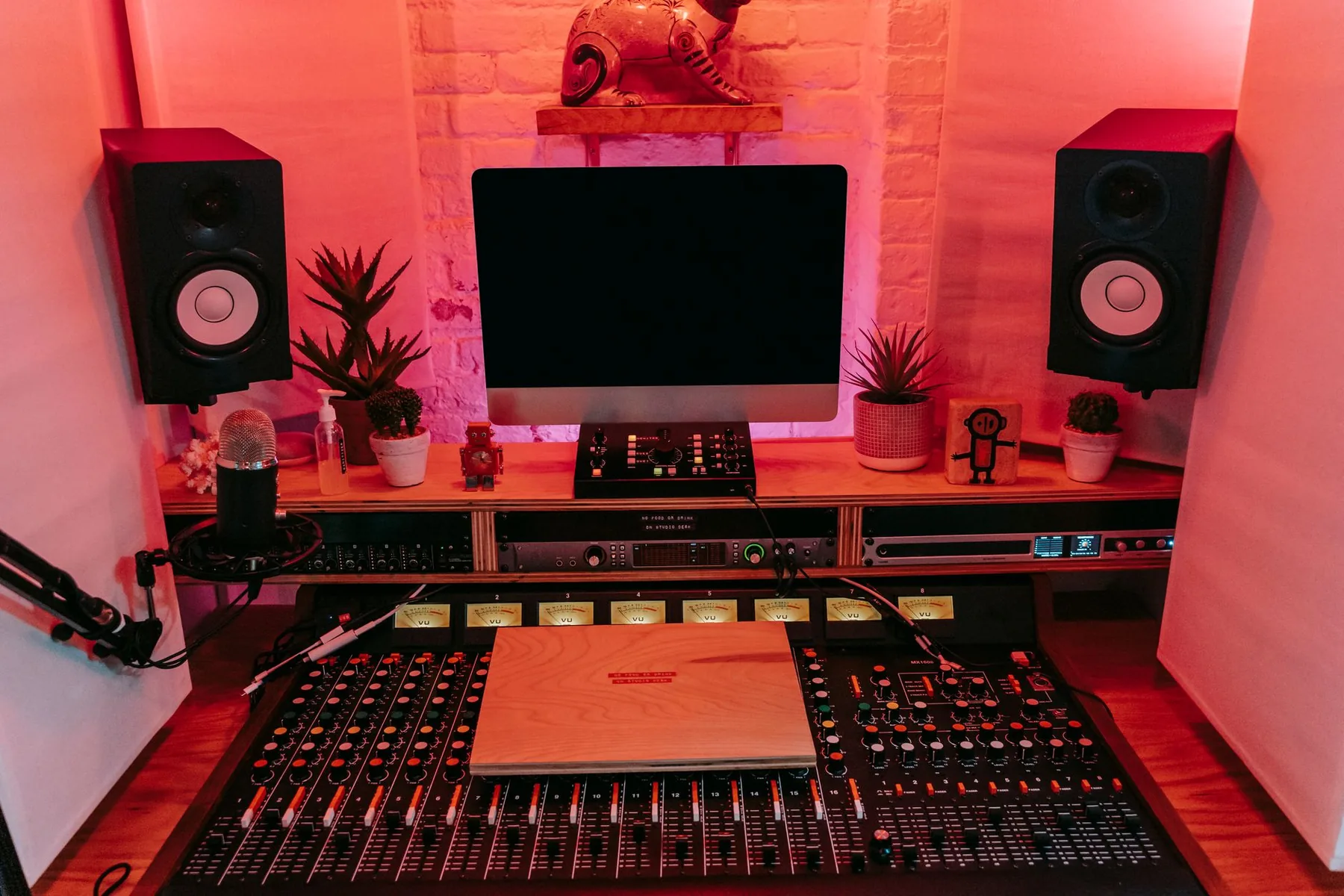
Windows — ASIO drivers and system options
On a PC, favor the ASIO drivers supplied with your interface. They reduce latency and improve stability compared with MME/DirectX.
Without a dedicated interface, install ASIO4ALL as a fallback. Enable a high-performance power plan and disable nonessential services to keep CPU load consistent.
macOS — Core Audio and Apple Silicon
Core Audio is built in and easy to configure. Apple’s ecosystem provides a predictable experience that requires little manual optimization.
Apple Silicon machines (M1/M2+) offer efficiency gains. Check plugin compatibility, however: some instruments or effects require ARM versions or Rosetta 2.
Choose according to your needs
- Budget and upgrade options: a PC is easier to upgrade and often offers better value for money.
- Integration: macOS offers consistent hardware integration and simplicity.
- Use case: an upgradeable fixed studio PC, or mobile production on an Apple Silicon laptop.
For a complete guide to choosing a computer suited to music production, see this buying guide.
Optimize the Host Computer: BIOS, Power, and Background Processes
A well-configured computer starts with BIOS settings, power management, and removing unnecessary tasks. These adjustments reduce CPU interruptions and improve stability during sessions.
BIOS and power settings
Open the BIOS/UEFI at startup using the key specified by the manufacturer, and enable Hyper-Threading if available. This helps Ableton Live process dense mixes across multiple threads.
Enable Turbo Boost to allow bursts of clock speed when demanding effects put pressure on the processor. Select a “High performance” power plan to prevent clock speeds from dropping.
Disable core parking and power-saving settings that delay CPU or GPU activation.
Manage background tasks
Close nonessential applications, including cloud services, messaging apps, and browsers. Pause updates and synchronization during recording.
Configure antivirus exclusions for your project folders, the Ableton Live executable, and your audio interface driver.
On a laptop, work while plugged in, enable a “performance” thermal profile, and ensure adequate ventilation to prevent heat-related throttling.
- Use dedicated USB ports for the audio interface and avoid unpowered hubs.
- Record these settings in a checklist so you can reapply them after a system update.
- For more software resources, see free software for Mac.
Ableton Live on Mac or Windows: Optimize Performance with Key Live Settings
Learn how to adjust buffer size, organize tracks, and check plugins to reduce crackles and keep your studio responsive.
Buffer size, sample rate, and compensation
Adjust buffer size to suit the task: 64 to 128 samples for recording and 256 to 1,024 for mixing. This balances latency and stability.
Choose 44.1 or 48 kHz according to your project. Enable automatic latency compensation to align tracks and monitoring signals.
Organize tracks, groups, and effects
Group tracks by type and use Freeze or Flatten to manage resource-intensive instruments.
Use resampling to capture the output of complex effect chains, and favor shared return tracks for reverbs and delays instead of adding multiple insert effects.
Plugins and Apple Silicon compatibility
Check VST2, VST3, and AU plugin compatibility. On Apple Silicon, favor native ARM versions. Enable Rosetta only when necessary, and keep your plugins updated.
Manage content and loading times
Store libraries and projects on SSDs to speed up loading. Restrict indexing to useful folders and clear the cache regularly.
| Setting | Use | Recommended value |
|---|---|---|
| Buffer size | Recording | 64 to 128 |
| Buffer size | Mixing | 256 to 1,024 |
| Sample rate | Typical project | 44.1 / 48 kHz |
| Storage | Libraries | Dedicated SSD |
For a complete list of system checks, see the Live 12 system requirements.
Hardware and Audio Interfaces: CPU, RAM, SSD, and Latency in Practice
A good setup starts with suitable hardware: a multicore processor, enough RAM, and fast SSDs reduce latency and improve session stability.
Processor and memory
Choose a processor with fast cores if your projects have many tracks and effects. For demanding renders, aiming for 24 to 32 cores may make sense.
RAM: 16 GB for standard projects, 32 GB for demanding sessions, and at least 64 GB for orchestral libraries or very dense project templates.
Storage
Use an NVMe SSD for the system and caches, and a dedicated SSD for projects and samples. Aiming for 512 GB to 1 TB per drive helps limit access times.
Audio interface and drivers
Favor interfaces known for stability, such as Focusrite Scarlett and PreSonus AudioBox. Native ASIO or Core Audio drivers remain the best option for low latency.
“A balanced hardware setup prevents studio interruptions and lets you focus on creating.”
| Component | Use | Recommendation |
|---|---|---|
| Processor | Heavy mixing / rendering | i7/Ryzen 7+ or 24 to 32 cores |
| RAM | Sample-based sessions | 16 to 64 GB, depending on use |
| Storage | System / samples | NVMe SSD of at least 512 GB; a dedicated 1 TB SSD is recommended |
| Interface | Recording / monitoring | Focusrite / PreSonus; ASIO/Core Audio drivers |
To choose a suitable computer, compare SSD speeds, interface latency, and driver stability before buying.
Conclusion
Keep in mind the hardware and software choices that stabilize your music workstation. A balanced configuration — suitable processor, enough RAM, and fast SSDs — provides the foundation for a good session. Regular maintenance and updates help preserve stability.
Match your computer purchase to your needs: upgrade options for demanding work, or simplicity for mobile use. Test every change on a copy of your project to avoid problems during production.
Ableton Live will run better if you document your setup, limit background tasks, and keep backups. Measure, adjust, and repeat: ongoing optimization is the key to freeing up time for making music and improving your experience day by day.