
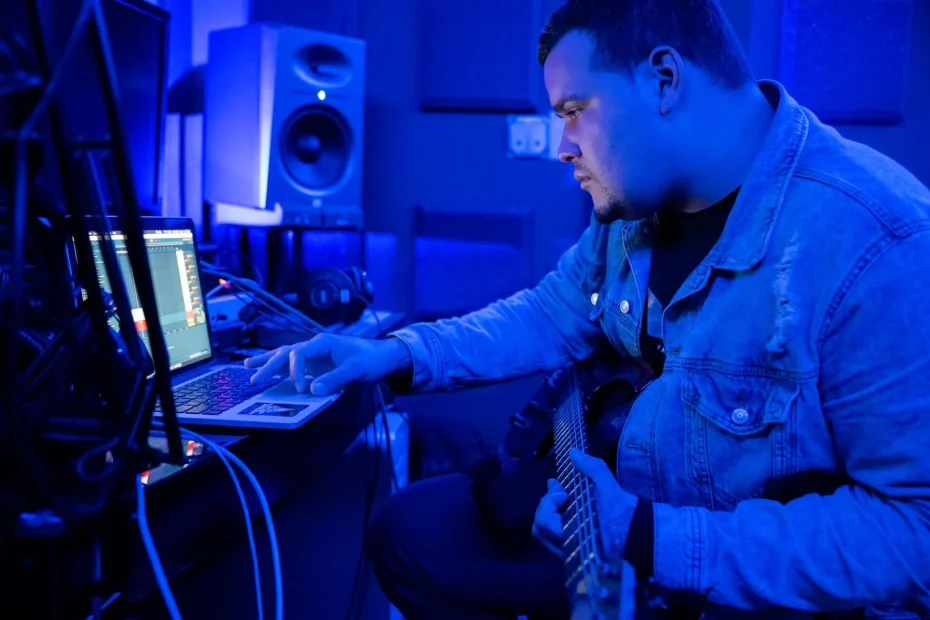
The central question: running this DAW on Linux is possible in some cases, but there is no official installer or support from its developer. Reports show that some users run it through Wine, Bottles or Lutris and connect WineASIO to JACK or PipeWire.
This guide takes a practical approach: start with a minimal setup, test one step at a time, then adjust it to your needs. GPU settings, the audio interface and plugins affect responsiveness, Session View and clip handling.
Before you begin, consider how comfortable you are with technical adjustments and how much you rely on third-party plugins. For professional reliability, Windows or macOS remains the recommended choice. For practical resources, see this selection of tools and tips: tools and practical guide.
Current context and aims of this guide
This section explains what you can achieve and the limitations you should know about.
The aim is to provide a reproducible starting point for running this non-native DAW. You will learn how to prepare your system, choose tools and check audio and MIDI step by step.
What you can do today:
- Install Wine, Bottles or Lutris and create a dedicated prefix.
- Add dependencies with winetricks and configure WineASIO.
- Connect WineASIO to JACK or PipeWire and run audio and MIDI tests.
- Launch the software and check clip playback, recording and latency.
Limitations to keep in mind:
- The developer provides no official support. Some versions or plugins may not work properly.
- Performance depends heavily on the distribution, drivers and audio stack.
- Each environment may need minor adjustments.
| Goal | Key action | Expected result |
|---|---|---|
| Prepare the foundation | Update the system and drivers | A stable testing environment |
| Configure audio | Install WineASIO and JACK or PipeWire | Acceptable latency and working audio routing |
| Check operation | Launch the software and test clips and MIDI | Confirmation that the audio and MIDI chain works |
Myths, realities and official support
The support situation for this DAW involves both myths and verifiable facts. The software has no official installer for use on Linux, and its developers provide no support for this system.
No installer or support
There is no hidden official version. Any successful installation depends on adjustments and third-party tools.
Why it works for some people and crashes for others
The entire chain—kernel, GPU drivers, audio server, Wine and plugins—varies from one system to another. Successful cases therefore differ considerably.
- Different versions of Wine or the DAW can solve or cause problems.
- Small installation differences, such as a 32-bit or 64-bit prefix, winetricks packages or environment variables, can change everything.
- Third-party plugins frequently cause crashes.
The community provides guides and firsthand reports. Keep a detailed record of your setup: distribution, kernel, drivers and installation steps. It will help you reproduce a stable configuration if you find one.
Linux system and hardware requirements
Before installing anything, check that your hardware and software meet the demands of real-time audio.
Distribution, kernel and drivers
Choose a distribution known for audio production. Look for a release with a recent kernel and up-to-date graphics and audio drivers.
Why? A modern kernel reduces conflicts and improves interrupt handling. Stable drivers help prevent the interface from freezing.
Audio interfaces, latency and stability
Interfaces recognized by ALSA or PipeWire are good candidates if WineASIO connects to JACK or to PipeWire in JACK compatibility mode.
- Start with a generous buffer size, then reduce it until XRUNs begin to appear.
- Prefer class-compliant USB interfaces and powered hubs to avoid dropouts during recording.
- Record the model, firmware version, ALSA or PipeWire layer and buffer settings to make it easier to get community help.
Practical tip: disable unnecessary services and overly aggressive power-saving settings. A consistently configured system makes sessions more reliable.
Ableton Live on Linux: Is it really possible today?
Community members report successful setups, but only under certain conditions.
What sometimes works
Verdict: the software can launch and play clips in some cases. Users have run Ableton Live 10, 11 or 12 with Wine, including activation, and have had their audio and MIDI interfaces recognized.
Key compatibility factors
Several factors have a strong effect. The version of Wine, the WineASIO connection to JACK or PipeWire, GPU drivers and audio-interface stability all matter.
- Start with a clean prefix and no plugins.
- Test playback of a simple clip and audio monitoring.
- Add tools and VSTs one at a time to isolate crashes.
| Factor | Risk | Recommended action |
|---|---|---|
| Wine versions | Crash on launch | Test several versions and keep the one that works |
| Audio server (JACK or PipeWire) | XRUNs and latency | Start with large buffers, then optimize |
| Third-party plugins | Intermittent crashes | Diagnose by eliminating possible causes |
| GPU and drivers | Slow interface | Use stable drivers and lightweight graphics settings |
With compatible hardware, cautious settings and few extensions, you can often get smooth sessions for small performances or preproduction.
Prepare the environment: Wine, Bottles or Lutris
A successful installation starts with a clean prefix and correctly installed dependencies. This step reduces errors and makes testing easier.
Choosing between plain Wine, Bottles and Lutris
Plain Wine provides precise control and advanced settings. Bottles simplifies prefix and profile management. Lutris offers ready-made scripts to automate installation.
Configure dependencies with winetricks
Winetricks installs essential runtimes, fonts and libraries. This reduces errors when the software starts and improves plugin compatibility.
Preinstallation tips for avoiding problems
- Create a dedicated 64-bit prefix and set the Windows version to emulate.
- Prepare WineASIO and check the connection to the audio server (JACK or PipeWire) now.
- Start in minimal mode, without third-party plugins, to isolate problems.
- Avoid spaces and accented characters in paths, and document the tools and versions you use.
| Option | Advantage | Disadvantage |
|---|---|---|
| Plain Wine | Precise technical control | Time-consuming manual configuration |
| Bottles | Easy prefix management | Less flexibility for advanced settings |
| Lutris | Ready-made installation scripts | Reliance on community scripts |
Install Ableton Live on Linux step by step
Work methodically: a dedicated prefix and stable paths reduce errors.
Download the installer and create a dedicated Wine prefix
Create a dedicated folder for the prefix and choose an architecture (64-bit is recommended).
Set WINEPREFIX and WINEARCH in your terminal, then run a simple executable to confirm that the prefix works.
Install the software: versions 10, 11 and 12
Run the installer in the clean prefix and follow the usual steps. Avoid special characters in paths.
Record which version installs without errors, and archive its installer and prefix.
Online activation or offline authorization
Try online activation first. If it fails, use the offline authorization procedure with the license file.
Directories, permissions and paths to watch
Put Packs and libraries on a fast, reliable drive to reduce access times. Make sure you have read and write access to every directory in the prefix.
Run a simple recording test to check that audio and MIDI work properly.
| Step | Action | Check |
|---|---|---|
| Prefix | Create a folder and set WINEPREFIX and WINEARCH | Test executable works |
| Installation | Run the installer and avoid special characters | User directories have been created |
| Activation | Try online activation, then offline authorization if needed | License accepted |
| Organization | Put Packs on a fast drive and check access permissions | Recording test passes |
Configure audio: JACK, ALSA, PipeWire and WineASIO
First, confirm that WineASIO communicates with your audio server. WineASIO must be installed in the Wine prefix so your DAW can detect it as an audio driver.
Install WineASIO: copy the supplied DLL into the prefix’s system32 folder, then register it with winecfg. Select WineASIO as the audio driver in the software’s preferences. Next, start the JACK server or enable PipeWire’s JACK compatibility mode.
Connect WineASIO to JACK or PipeWire
Start JACK or PipeWire, then open a connection manager (qjackctl, Carla or pw-jack). Select WineASIO in the DAW. Check that the WineASIO outputs appear in the connection and routing graph.
Latency and buffer settings, and preventing XRUNs
Start with a generous buffer size of 256 to 512 samples. Watch CPU load and XRUNs. Gradually reduce the buffer size if playback remains stable.
- Adjust the sample rate if necessary.
- Disable nonessential services and power-saving settings.
- Prefer an interface recognized by ALSA or PipeWire to limit problems.
Map inputs and outputs and test stability
Identify each input channel on your interface and test headphone monitoring. Run longer sessions—playing projects, recording and working with tracks—to identify bottlenecks.
Check MIDI synchronization if you control external devices through JACK MIDI or ALSA MIDI. Save your stable connections and export the configuration so you can restore it after a restart.
For another step-by-step guide and firsthand reports, see this resource: installation guide and tips.
MIDI, controllers and performance hardware
On stage, reliable MIDI connections and control surfaces make all the difference. Most class-compliant USB keyboards and pads are detected on Linux. Check that they appear in ALSA or PipeWire before opening the DAW through Wine.
Class-compliant keyboards and controllers: detection and mapping
Once the hardware is connected, open the preferences panel and use MIDI Learn to assign knobs, pads and faders. Test each channel and save a global mapping.
Push as a generic controller: integration limits
In generic controller mode, Push lets you use notes and pads, but offers little deeper integration. Its display and advanced functions remain only partly usable. Treat it as a standard controller when necessary.
Clock, LED feedback and control surfaces
Configure incoming and outgoing clock signals to synchronize drum machines and external sequencers. LED feedback depends on the protocol and virtual driver: test each bank separately.
- Prefer a powered USB hub and short, good-quality cables.
- Assign transport, volume, mute and solo controls to reduce mouse use.
- Test stability under real conditions: launch scenes and send CC messages rapidly.
| Item | Action | Expected result |
|---|---|---|
| Class-compliant keyboard | Check detection in ALSA or PipeWire, then assign it with MIDI Learn | Notes and controls detected |
For firsthand reports and useful scripts, see this community resource: hardware reports and tips.
Plugins, VSTs and instruments: what should you load in Wine?
Before you accumulate VSTs, decide how you will test and isolate them. Working in the right order saves time and helps protect your projects.
Windows VSTs in Live: compatibility and precautions
Under Wine, the software expects Windows VSTs. Do not install native Linux plugins in the emulated environment’s VST folders.
Test plugins one at a time. Start with the instruments and effects essential to your workflow.
- Paths: document them and avoid spaces and accented characters. Keep 64-bit folders separate.
- Avoid complex installers, protected drivers and intrusive licensing systems: they often cause problems.
- Save your projects frequently while testing.
Bridges and an alternative: yabridge for a native DAW
If you use a native DAW, yabridge can load certain Windows VSTs and integrate them more closely with the system.
This option reduces the overhead associated with running a DAW through Wine and may improve MIDI handling, automation and CPU use.
| Action | Purpose | Expected result |
|---|---|---|
| Test a plugin on its own | Identify crashes | A list of compatible and incompatible plugins |
| Separate VST folders | Avoid conflicts between 32-bit and 64-bit versions | Reliable loading |
| Use yabridge | Integrate VSTs into a native DAW | Better stability |
Practical advice: keep a list of the compatible and incompatible plugins you have tested. It will speed up future sessions and reduce surprises at gigs.
Optimize performance for smooth sessions
Performance optimization starts with identifying system bottlenecks.
Proton and Wine: when should you change versions?
Change versions if you encounter repeated crashes, display glitches or incompatibilities after an update.
Before migrating, keep a copy of your stable prefix and test another version.
CPU, power settings and audio IRQs
Enable a high-performance power profile and a responsive CPU governor.
Prioritize audio IRQs to reduce latency and XRUNs. On laptops, disable overly aggressive power-saving settings.
Simplify the graphical interface and reduce GPU load
Disable unnecessary compositing effects and close background applications that use the GPU. Limit animations and unnecessary windows.
Useful tools include per-track CPU monitoring, video-memory monitoring, an XRUN counter and total-latency measurement.

| Problem | Action | Expected result |
|---|---|---|
| Display glitches | Change Wine or Proton versions and test the prefix | Responsive interface |
| Frequent XRUNs | Increase the buffer size, prioritize audio IRQs and choose a suitable CPU profile | Fewer audio dropouts |
| Overloaded CPU | Close background tasks and test effects one at a time | More usable tracks |
Once sessions become reliable, keep a stable software stack: kernel, drivers and Wine version.
Often, just a few targeted adjustments to buffer size, sample rate and priorities are enough to eliminate audio glitches.
Use Live on Linux: Session View, clips and recording
Session View is ideal for organizing ideas and trying arrangements quickly. Create scenes that are easy to distinguish, and name them so you can find them during a performance.
Create and launch clips and loops
Prepare your clips with suitable quantization and clean loops. Use launch delays to avoid clicks. Test transitions with a count-in and enable Follow Actions to automate them.
Record audio and MIDI and manage takes
Arm tracks, check levels and record several takes. Name each take and mark the best one for comping.
“Saving session templates reduces risk and speeds up the creative process.”
- Add a MIDI controller to launch clips without a mouse.
- Save session templates for different uses: gigs, production or rehearsal.
- Monitor CPU load in real time to avoid overloads.
| Action | Purpose | Result |
|---|---|---|
| Session template | Save time | Setup ready in seconds |
| Multiple takes | Choose the best performance | Clean comp |
| MIDI controller | Reduce mouse use | Smoother performance |
Troubleshooting: activation, crashes and audio glitches
Activation failures and crashes call for a gradual process of elimination.
Failure to launch or crash at the splash screen
If the software crashes at the splash screen, start by checking the Wine log for errors.
Check dependencies with winetricks and relaunch without third-party plugins to isolate the cause.
Also test a new minimal prefix to rule out a corrupted configuration.
Activation and license problems: offline solutions
If online activation fails, use offline authorization.
- Export the activation request from the software.
- Get the authorization file from the developer’s portal.
- Import the file into the software, then relaunch it.
- Change your Wine version if you suspect a regression, and document the differences.
- Check prefix permissions to avoid silent write errors.
- Disable GPU acceleration if the interface is visibly unstable.
- Check MIDI devices: a faulty driver or feedback loop can prevent startup.
“Sharing your logs and configuration helps other users assist you more quickly.”
| Problem | Action | Expected result |
|---|---|---|
| Crash at the splash screen | Check the Wine log and test without plugins | Identify the cause |
| Activation | Offline procedure (export and import) | License validated |
| Interface instability | Disable GPU acceleration and change Wine versions | Stable interface |
Native alternatives for a fully Linux-based environment
Native alternatives make sessions more reliable and reduce the risks associated with emulation.
Bitwig Studio offers a clip-and-scene workflow close to what many users want. It has a native Linux version that is stable and well integrated with the system.
REAPER has an official Linux version. It is lightweight, customizable and capable across many production tasks.
Ardour is robust, open-source software for recording and mixing. Qtractor favors a conventional, timeline-based approach to editing.
Giada remains useful for simple clip launching, but may have audio glitches and limited format support. LMMS suits pattern-based composition as an alternative to tracker-style workflows.
To load some Windows VSTs in a native DAW, yabridge remains an option to use with care.
| Software | Strength | Limitation |
|---|---|---|
| Bitwig Studio | Clips and scenes, native version | Paid license |
| REAPER | Stability and low resource use | Interface needs customization |
| Ardour and Qtractor | Recording and timeline editing | Less focused on live clip launching |
Try the demo versions: measure latency, editing comfort and plugin compatibility. For demanding projects, favor a native DAW for greater reliability.
Make the right choice: needs, uses and constraints
The right tool depends more on your workflow than on a “best software” label. Start by defining your needs: electronic composition, live performance, acoustic recording, sound design or postproduction.

Production and live performance: selection criteria
For the stage, prioritize stability, latency and real-time control.
For production, prioritize comprehensive arrangement and editing tools.
Users, versions, plugins and budget: choosing a DAW
Weigh the time spent on maintenance against the features you gain.
- Assess how much you depend on specific plugins.
- Calculate the cost of licenses and necessary hardware.
- Check update frequency and how responsive the developers are.
A practical method: test a minimal setup, measure latency and stability, then keep a reliable baseline.
To help you weigh your options and find decision-making tools, see this resource: AI music and audio production project.
“Choosing a DAW means putting creativity first and reducing the obstacles between an idea and its realization.”
| Criterion | Priority on stage | Priority in the studio |
|---|---|---|
| Stability | High | Medium |
| Latency | High | Medium |
| Editing tools | Medium | High |
Community, resources and developer updates
Firsthand reports organized by distribution can help you choose a stable setup. The community publishes guides, scripts and step-by-step procedures that may help with your configuration.
Forums, wikis and user reports for your distribution
Consult audio-production forums and wikis for solutions suited to your distribution. Follow discussions about Wine, PipeWire, JACK and WineASIO to spot regressions and fixes.
No official announcement of a Linux version
The developers have made no official announcement about a native version. Users must therefore keep an eye on developments.
“Sharing your logs and configurations makes it easier to help one another.”
- Publish your results and logs to add to the field’s shared knowledge.
- Keep compatibility lists of software and versions up to date to avoid risky updates.
- Enable security alerts and back up your work before any major update.
| Resource | Use | Recommended action |
|---|---|---|
| Distribution’s audio-production forum | Distribution-specific solutions | Follow discussions and ask questions |
| Wine and WineASIO discussions | Regressions and fixes | Subscribe to key threads |
| Compatibility list | Reliable versions | Keep it current and share it |
Professional verdict: when to stay with Windows or macOS and when to move to Linux
The decision comes down to your interest in experimenting with an open system and your need for a reliable setup.
Staying with Windows or macOS is advisable if your tolerance for risk is low. For paid sessions, tours or important dates, stability and native support carry considerable weight.
Moving to Linux suits learning, preproduction and personal projects. A setup that runs the DAW through Wine may be enough for less demanding tasks, but results vary by version and configuration.
- Prefer Windows or macOS for gigs, plugin availability and quick recovery from backups.
- Choose Linux to test workflows, reduce dependencies and explore native DAWs.
- Keep a stable version and plan a fallback: dual boot, a dedicated machine or another DAW.
| Context | Recommendation | Why |
|---|---|---|
| Paid sessions or touring | Stay with Windows or macOS | Native support, plugin compatibility and lower risk |
| Preproduction or learning | Move to Linux | Lower cost, room to experiment and native DAWs |
| Mixed use | Dual boot or a dedicated machine | Allows testing without compromising reliability |
Adapt your decision to your needs: style, number of essential plugins, latency requirements and monitoring. In short, weigh the costs and risks, then choose the approach that supports reliable, productive work day to day.
Conclusion
In summary: running Live through Wine and WineASIO connected to JACK or PipeWire works for some users, but success depends on hardware, distribution and settings. Gradual testing and regular backups remain essential.
To install Ableton Live on Linux, prepare a clean prefix, configure audio, then check each software function step by step. Test MIDI connections and audio before adding your plugins.
If reliability matters most, favor native options such as Bitwig, REAPER or Ardour. Share your logs and configurations: the community can help resolve complex cases.
In practice, document your tests, measure latency, stabilize a working setup and keep a fallback. That will limit risk and help you get back to making music quickly.